For Your Music Lead

The Chapel at Wimberley Music Lead Guide

Running the ceremony music from your phone? Here's exactly what to do, plus how to find us and when to arrive — a two-minute read.

On this page

Music & Sound

Running the music: your music lead's page

You're the music lead: you'll be playing the couple's music for their wedding from an iPhone or iPad. We have a Sonos speaker system you can AirPlay to and then control songs and volume from the device.

The couple sent you this page because you're their music lead — the one person running the ceremony music from a phone. It's easier than it sounds — the WiFi details below are all you need to connect yourself, and our team is nearby if you hit a snag.

Before you arrive

  1. Decide whose phone you'll use. Most couples prep their own phone ahead of time — playlists built and downloaded — and hand it to you on the day. If you're using yours instead, get their playlists onto it (or into the Wedding Player app, if they're using it). Decide this with the couple beforehand.

  2. Check the playlists. Generally, you would have 4 separate playlists:

    • Pre-Ceremony — background music while guests arrive and find their seats. You start it the moment you connect.
    • Processional — for entrances. Usually that's two songs: one for the wedding party, one for the bride.
    • Recessional — the exit, the moment they're pronounced.
    • After-Ceremony — keeps music going while guests hang out on the patio.

    Although we have fiber internet, it's best to have these downloaded for offline playback beforehand.

  3. It needs to be an iPhone or iPad. The chapel speakers connect over AirPlay, which is Apple-only.

  4. If you'll be using one of the couple's phones, make sure you know the passcode to unlock it.

When you arrive

  1. Join the chapel WiFi:
    • Network: TCW Music
    • Password: chapelmusic
  2. Turn on Do Not Disturb so a call can't cut in during the ceremony.
  3. Open your music app, tap the AirPlay icon, and you'll see the "Chapel" option for the chapel speakers. You can also check "Patio" if you'd like to play music to the patio at the same time (it can play to both simultaneously). If a speaker doesn't show up, ask our team member — but most people are connected in under a minute.
  4. Press play on the Pre-Ceremony playlist right away, so music is already filling the room as guests arrive and find their seats.

Here's what AirPlay looks like (once you're on the WiFi):

Control Center → AirPlay icon → Chapel + Patio

Your cues

  1. Processional — once the ceremony begins, fade out the Pre-Ceremony music and start the Processional playlist.
  2. Fade the music once everyone is in place at the front.
  3. Check you're still connected before their ceremony ends.

    Don't skip this one. A few minutes before the ceremony ends (during the vows or ring exchange), quietly unlock the phone, open the music app, and make sure it still shows Chapel as the speaker. Phones can drop the speakers after the music sits paused for a while. If it's gone, tap the AirPlay icon and pick Chapel again, then line up the recessional so it's one tap away.

  4. Recessional — hit it as the couple and wedding party exit. Big and joyful.
  5. After-Ceremony — once the recessional ends, start the after-ceremony playlist. Add Patio in the speaker menu so it plays out there too.

That's the whole job. Once you're connected you run everything from your seat, so take one and enjoy the ceremony.

Good to know

  • During the ceremony, there's no microphone over the chapel speakers, and none is needed — the room carries voices to the last row. If the couple has added our Livestream option, we will mic up the officiant with a lapel mic that only plays over the livestream. This mic will also pick up the couple speaking their vows over the livestream.
  • If someone would like to make an announcement, such as announcing the couple's grand entrance after photos, or doing a toast on the patio, we have a handheld mic that will play over the Patio speakers. Please ask our staff and we can provide this for you.
  • Our on-site team sets up the room and is around if you have trouble connecting, but they can't run the music during the ceremony. That part is yours.
  • The ceremony starts at least 30 minutes after the couple's window opens — arrive with them so there's time to connect and test. Directions and parking: chapeltx.com/guide/arrival.
  • Questions on the day? Find our team member in the chapel, or text (830) 402-5690.
Arrival & Day Of

Directions & arrival

Search "The Chapel at Wimberley" in Google Maps and it routes you straight to us — 644 Ghost Dancer, about 20 minutes from Wimberley. On-site parking is included, and doors open when your window begins. Ask guests to arrive no earlier than 15 minutes before your ceremony.

Finding us

The chapel sits in the Texas Hill Country about 20 minutes from Wimberley, between Austin and San Antonio.

644 Ghost Dancer, Fischer, TX 78623

Searching "The Chapel at Wimberley" in Google Maps routes you right to our door — that's the easiest thing to put on your invitations and share with vendors. Cell service can get spotty in the hills, so have your navigation running before you leave the main roads. For turn-by-turn directions from Austin or San Antonio, see our directions page.

About the last stretch: the final ~1.3 miles to the chapel are a Hill Country dirt road — that's the normal way in, and every car handles it just fine, rain or shine. When the pavement ends, you're almost here; keep following your navigation.

The lay of the land

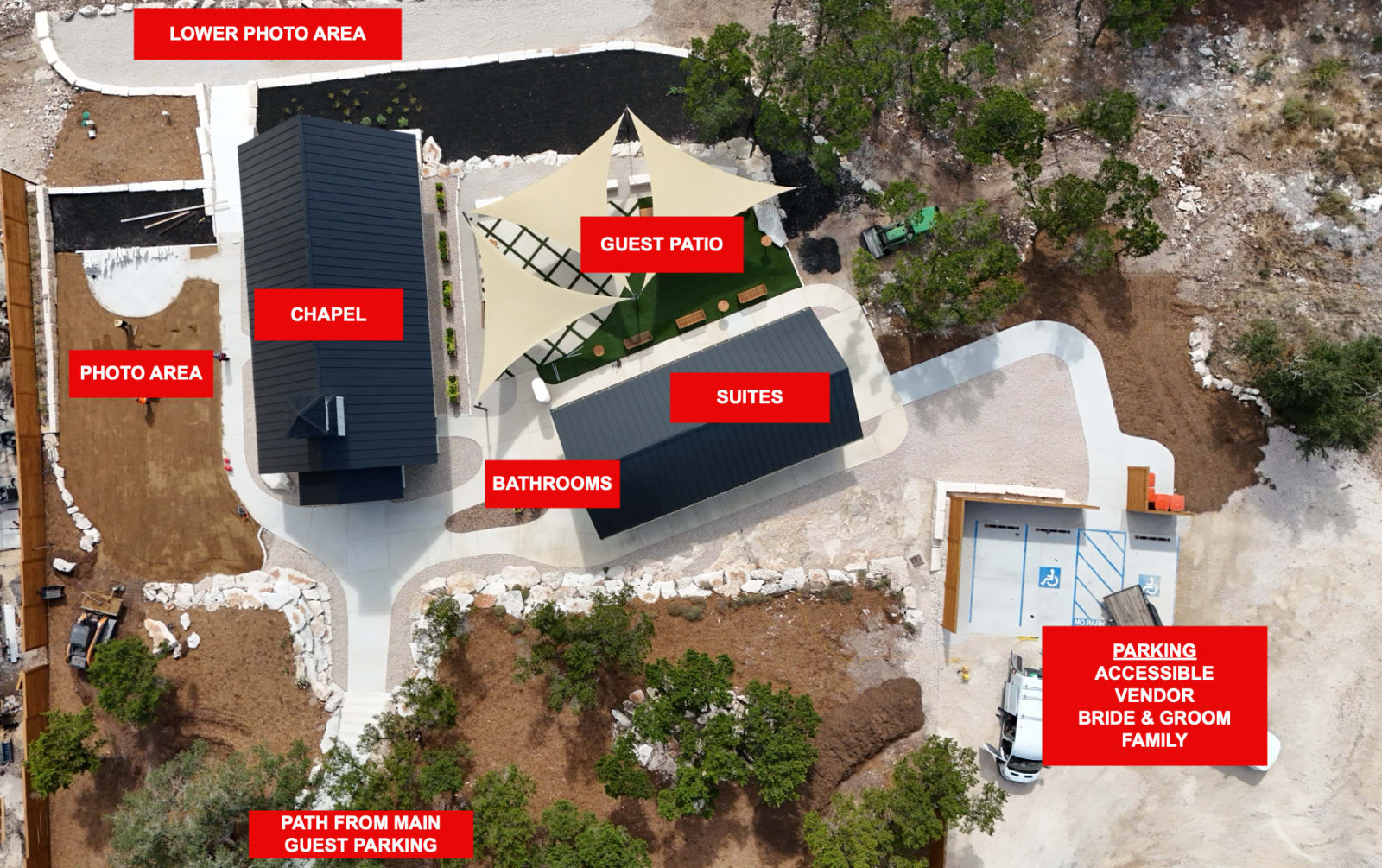
Aerial photo of the chapel grounds with red labels: the chapel, the guest patio under shade sails, the Bride & Groom suites, the bathrooms in the Annex between them, a photo area beside the chapel and a lower photo area beyond it, the path up from the main guest parking at the bottom, and the side parking lot by the suites marked accessible, vendor, bride & groom, and family.
The chapel from above. Main guest parking is just below the frame; the path leads up to the chapel. The side lot by the suites is for accessible parking, vendors, the two of you, and whoever is arriving with you to help set up. The bathrooms are in the Annex between the chapel and the suites. Tap to open full size.

Parking

On-site parking is included for all your guests, steps from the chapel, with accessible parking, a ramp, and an accessible bathroom.

Two lots. Guests park in the main lot and take the short path up to the chapel. The side lot next to the suites is for accessible parking, vendors, the two of you, and family who are arriving with you to help unload and set up. It is a much shorter carry from there, so send anyone bringing decor, cake, or coolers to that lot.

When to arrive

  • You (the couple): the chapel is privately yours from the minute your window opens — walk in at the start. Signature and Premier couples head straight to the suites.
  • Your guests: no earlier than 15 minutes before the ceremony begins. That's plenty of time to park, find a seat, and enjoy the prelude music. Put your ceremony time on your invitations and wedding website, not your window start, and ask guests not to come early. Early arrivals end up waiting outside while you're still getting ready. Running early? Our directions page lists easy nearby stops to pass the time.
  • Your vendors: at the window start, not before — details on the vendor page.

Vendors & Helpers

WiFi & internet at the chapel

The chapel has fiber internet and WiFi throughout the venue. Everyone joins TCW Guest (no password). Only the phone running the ceremony music joins TCW Music, password chapelmusic.

The chapel runs on fiber internet, with WiFi throughout the venue — the chapel, the patio, and the suites. Two networks, two jobs.

For everyone: TCW Guest

  • Network: TCW Guest
  • Password: none — just join

This is the one for you, your guests, your officiant, your photographer, and your vendors: sharing photos, FaceTiming someone who couldn't make it, uploading, whatever the day calls for.

For the ceremony music: TCW Music

The chapel speakers live on their own network. The phone running your music joins this one so the speakers show up in its AirPlay menu:

  • Network: TCW Music
  • Password: chapelmusic

Only the music phone needs TCW Music — everyone else stays on TCW Guest. The full connect-and-play walkthrough is on your music lead's page: chapeltx.com/guide/running-the-music.

Good to know

  • Even on fiber, download your playlists for offline playback before the day — a downloaded playlist can never buffer at the wrong moment. See how music works.
  • Vendors and photographers are welcome on TCW Guest for uploads and backups during the window. More in vendor arrival & guidelines.
  • Trouble joining? Find our team member at the chapel, or text (830) 402-5690.

Something not answered here?

Sent here by one of our couples? Bookmark this page — it's everything you need for their day at the chapel.